> ## Documentation Index
> Fetch the complete documentation index at: https://docs.agentbees.ai/llms.txt
> Use this file to discover all available pages before exploring further.
# Flow
> Mission-control for every pipeline in your org — one row per run, live stage timeline, drawer for detail, click straight to the agent run or the live workspace.
**Flow** is the org-wide view of every pipeline run. One row per pipeline,
each row shows the stage timeline as dots (green = done, yellow = running,
red = crashed, empty = queued). Open a row's drawer for detail, and click
any stage to jump straight to either the **agent run log** (completed
pipelines) or the **live workspace** for that stage (in-progress pipelines).
Flow only lists **pipelines** (multi-agent runs). Single-task runs live on the
[Workspace](/workflows/guided-vs-developer-view) tab. See [Pipelines](/workflows/pipelines) for
how to compose and run one.
## Open Flow
 Click **Flow** in the left sidebar. The list is **newest-first** and paginated
**10 per page**. The header shows `N pipelines · N lanes · N passed`.
Each row shows:
* **Goal** — the sentence you entered when you started the pipeline.
* **Pipeline id + relative age** — e.g. `4fe7b828… · 6h ago`.
* **Agent kind** — e.g. `dev` (the coding agent that drove the line).
* **Stage timeline** — dots left to right, spanning the full row width. First
dot flush left, last flush right, connector line between them.
## Filter tabs
Above the list:
| Tab | What it shows |
| ----------- | ---------------------------------------------------------------------------- |
| **All** | Every non-discarded pipeline (up to the most recent 100). |
| **Passed** | Every stage completed successfully. Positive green pill tint. |
| **Running** | At least one stage is currently running or fanning out. |
| **Waiting** | At least one stage is paused on a human gate. Approve one to unblock. |
| **Failed** | At least one stage crashed. Red pill tint. Retry or discard from the drawer. |
Each tab shows its count in parentheses. The **search box** on the right
filters the current tab by goal text or by pipeline id.
## Stage dots — what the colors mean
| Dot | Status | Meaning |
| ------------------------------- | --------- | --------------------------------------------------------------- |
| ✓ Solid green (`#22c55e`) | `done` | Stage completed successfully. |
| Yellow ring, hollow | `running` | Currently executing. |
| Yellow ring with `wait` caption | `waiting` | Paused on a human gate — go to **Approvals** to unblock. |
| Pie (green arc over amber) | `fanout` | InfraOS breakdown fan-out — arc shows done-lanes / total-lanes. |
| ✕ Solid red | `crashed` | Stage failed. Use **Retry** from the drawer. |
| Empty circle | `queued` | Not yet started. |
Dots are ordered by **workflow execution order** (whichever stage the workflow
ran first shows first) — not by dispatch time or the order you dragged bees
into the composer. Rework rounds (`dev · fix #2`, `qe · re-review #2`, …)
land in their append-time position after their predecessor.
## Open the drawer
Click **Flow** in the left sidebar. The list is **newest-first** and paginated
**10 per page**. The header shows `N pipelines · N lanes · N passed`.
Each row shows:
* **Goal** — the sentence you entered when you started the pipeline.
* **Pipeline id + relative age** — e.g. `4fe7b828… · 6h ago`.
* **Agent kind** — e.g. `dev` (the coding agent that drove the line).
* **Stage timeline** — dots left to right, spanning the full row width. First
dot flush left, last flush right, connector line between them.
## Filter tabs
Above the list:
| Tab | What it shows |
| ----------- | ---------------------------------------------------------------------------- |
| **All** | Every non-discarded pipeline (up to the most recent 100). |
| **Passed** | Every stage completed successfully. Positive green pill tint. |
| **Running** | At least one stage is currently running or fanning out. |
| **Waiting** | At least one stage is paused on a human gate. Approve one to unblock. |
| **Failed** | At least one stage crashed. Red pill tint. Retry or discard from the drawer. |
Each tab shows its count in parentheses. The **search box** on the right
filters the current tab by goal text or by pipeline id.
## Stage dots — what the colors mean
| Dot | Status | Meaning |
| ------------------------------- | --------- | --------------------------------------------------------------- |
| ✓ Solid green (`#22c55e`) | `done` | Stage completed successfully. |
| Yellow ring, hollow | `running` | Currently executing. |
| Yellow ring with `wait` caption | `waiting` | Paused on a human gate — go to **Approvals** to unblock. |
| Pie (green arc over amber) | `fanout` | InfraOS breakdown fan-out — arc shows done-lanes / total-lanes. |
| ✕ Solid red | `crashed` | Stage failed. Use **Retry** from the drawer. |
| Empty circle | `queued` | Not yet started. |
Dots are ordered by **workflow execution order** (whichever stage the workflow
ran first shows first) — not by dispatch time or the order you dragged bees
into the composer. Rework rounds (`dev · fix #2`, `qe · re-review #2`, …)
land in their append-time position after their predecessor.
## Open the drawer
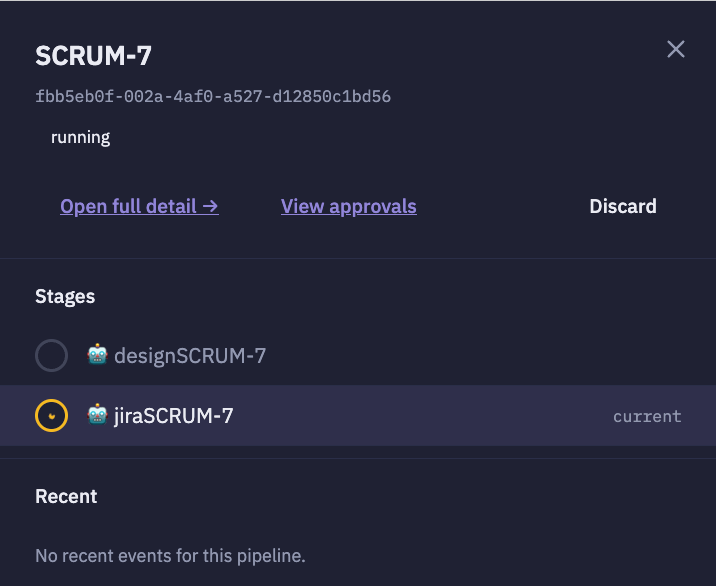 Click any row to open the right-side **drawer**. It has:
* **Header** — goal, pipeline id, and the pipeline's current status (`running`,
`completed`, `failed`, `changes_requested`, `discarded`).
* **Quick actions** — **Open full detail →**, **View approvals**, **Discard**.
* **Stages** — one row per stage in execution order; the current stage is
highlighted with a `current` badge.
* **Recent** — the last few pipeline events (gate approvals, verdicts, task
transitions).
The drawer polls live while the pipeline is active.
## Click a stage → jump to detail
Every stage row in the drawer is a **link**. Where it takes you depends on
whether the pipeline is still live:
| Pipeline status | Clicking a stage row goes to… |
| ------------------------------------------------------------------ | -------------------------------------------------------------------------------------------------------------------------------------------------------------------------------------------------- |
| Terminal (`completed`, `failed`, `changes_requested`, `discarded`) | **Admin → Agent runs**, with that pipeline row pre-expanded and the stage's audit panel pre-opened — you land right on the agent's REQUEST / response, token counts, MCP servers, and raw console. |
| Live (`running`, `waiting`, anything else) | The stage's **workspace / developer view** at `/tasks/` — live console + diff + steps. |
**Cmd/Ctrl-click** opens the destination in a new tab. Hover a row to see a tooltip that spells
out which view will open ("Open agent run log" for a completed stage; "Open workspace" for a live
one).
## Discard a pipeline
From the drawer, click **Discard**. The pipeline is marked terminal and no
further stages fire; the row drops off the list on the next refresh. The
underlying task rows are kept for audit (they no longer count against your
workspace slot or plan quota).
## Retry a crashed lane
On a **Failed** pipeline, the row's action button reads **↻ Retry crashed**.
Retrying re-dispatches the failing stage on the same branch. The rework loop
respects the pipeline's max-round cap (default **3**) — after that it stops
and the pipeline is finalized as `changes_requested`.
## Related
* [Pipelines](/workflows/pipelines) — how to compose an assembly line of bees.
* [Coordination](/workflows/coordination) — multi-agent hive coordination.
* [Guided vs Developer view](/workflows/guided-vs-developer-view) — the two
views on the individual task screen.
Click any row to open the right-side **drawer**. It has:
* **Header** — goal, pipeline id, and the pipeline's current status (`running`,
`completed`, `failed`, `changes_requested`, `discarded`).
* **Quick actions** — **Open full detail →**, **View approvals**, **Discard**.
* **Stages** — one row per stage in execution order; the current stage is
highlighted with a `current` badge.
* **Recent** — the last few pipeline events (gate approvals, verdicts, task
transitions).
The drawer polls live while the pipeline is active.
## Click a stage → jump to detail
Every stage row in the drawer is a **link**. Where it takes you depends on
whether the pipeline is still live:
| Pipeline status | Clicking a stage row goes to… |
| ------------------------------------------------------------------ | -------------------------------------------------------------------------------------------------------------------------------------------------------------------------------------------------- |
| Terminal (`completed`, `failed`, `changes_requested`, `discarded`) | **Admin → Agent runs**, with that pipeline row pre-expanded and the stage's audit panel pre-opened — you land right on the agent's REQUEST / response, token counts, MCP servers, and raw console. |
| Live (`running`, `waiting`, anything else) | The stage's **workspace / developer view** at `/tasks/` — live console + diff + steps. |
**Cmd/Ctrl-click** opens the destination in a new tab. Hover a row to see a tooltip that spells
out which view will open ("Open agent run log" for a completed stage; "Open workspace" for a live
one).
## Discard a pipeline
From the drawer, click **Discard**. The pipeline is marked terminal and no
further stages fire; the row drops off the list on the next refresh. The
underlying task rows are kept for audit (they no longer count against your
workspace slot or plan quota).
## Retry a crashed lane
On a **Failed** pipeline, the row's action button reads **↻ Retry crashed**.
Retrying re-dispatches the failing stage on the same branch. The rework loop
respects the pipeline's max-round cap (default **3**) — after that it stops
and the pipeline is finalized as `changes_requested`.
## Related
* [Pipelines](/workflows/pipelines) — how to compose an assembly line of bees.
* [Coordination](/workflows/coordination) — multi-agent hive coordination.
* [Guided vs Developer view](/workflows/guided-vs-developer-view) — the two
views on the individual task screen.