> ## Documentation Index
> Fetch the complete documentation index at: https://docs.agentbees.ai/llms.txt
> Use this file to discover all available pages before exploring further.
# Browser agent
> Give a task a real, sandboxed web browser — navigate, fill forms, screenshot, and verify pages — and watch it work live.
Some work needs the **web**, not just the repo: checking that a deployed page
renders, logging into an app to reproduce a bug, pulling facts off a site, or
filling out a form. The **browser agent** gives a task a real web browser it can
drive — and streams what it's doing back to you **live**.
## What you can do with it
Turn it on for a task and the agent can browse the web as part of its work:
* **Verify a deployed site** — "open the staging URL and tell me whether the
pricing page renders and the CTA works."
* **Reproduce a bug behind a login** — navigate an authenticated app and capture
exactly what the user sees.
* **Read a page** — "open this article and summarize the top items," or grab a
page's heading, prices, or table.
* **Drive a flow** — fill a form, click through a multi-step wizard, follow links.
* **Research across sites** — gather and compare information from several pages in
one task.
## Watch it live — and keep the screenshots
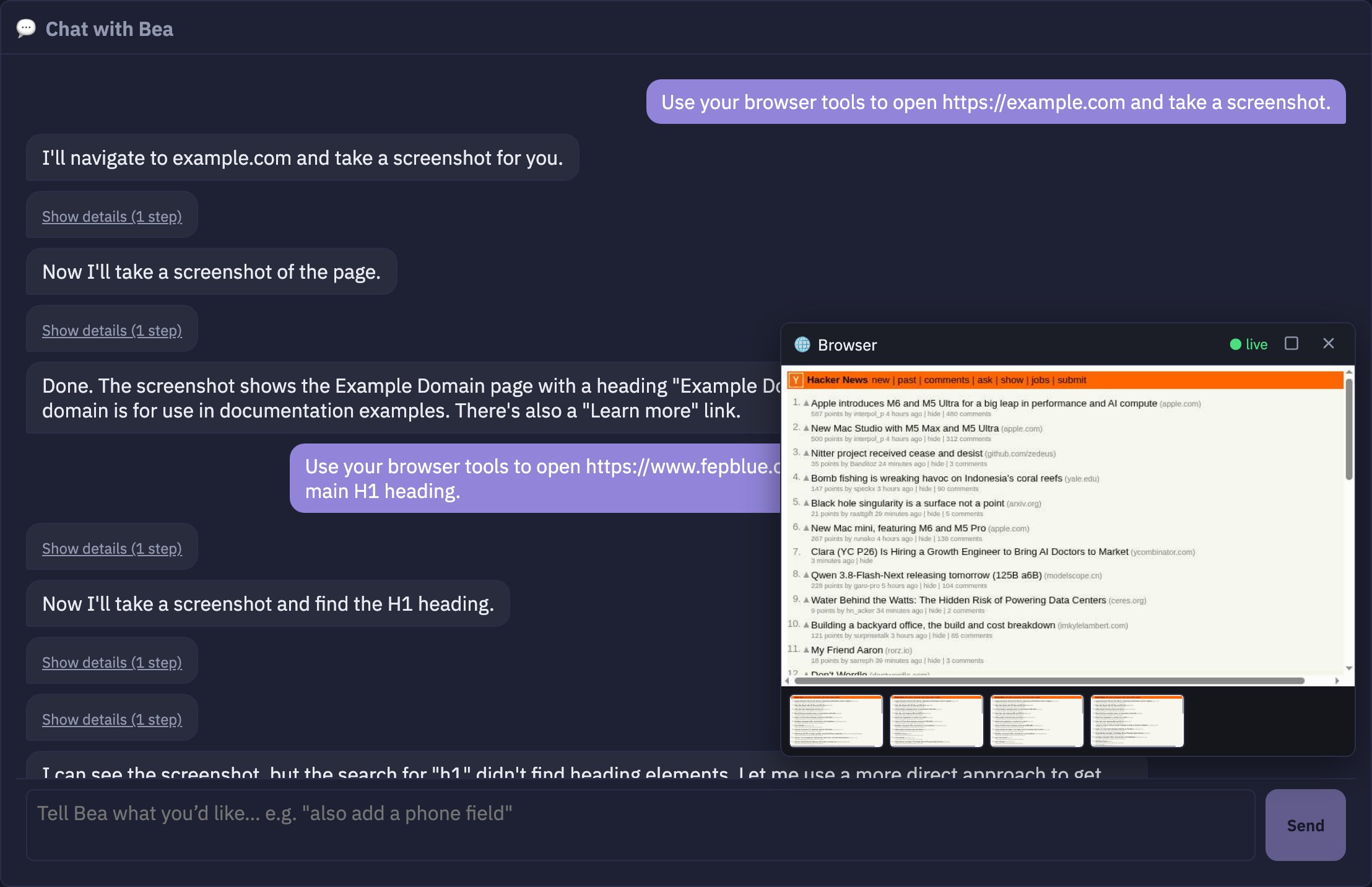 * A **Browser panel** shows the agent's browser **as it happens** — every page it
opens, live, whether you're in the chat view or the developer view.
* Each navigation is **captured as a screenshot** you can click to preview.
* The screenshots are **saved with the task**, so they're still there when you
come back later — reopen the panel any time from the **🌐 Browser** chip.
## Two backends — pick isolation or speed, per task
Choose the browser backend for each task from the **New Task** form:
| Backend | Where the browsing runs | Best for |
| ----------- | ---------------------------------------------- | ------------------------------------------ |
| **🌐 Grid** | Your own infrastructure — an isolated Chromium | Private, authenticated, or sensitive flows |
| **rtrvr** | rtrvr's managed cloud (fast) | Public, non-sensitive pages |
With **Grid**, browsing stays inside your own network — nothing leaves. **rtrvr** is faster, but
the page content is sent to rtrvr's cloud, so use it only for **public, non-sensitive** flows.
## Turn it on
In **Admin → Agent LLM**, turn on the browser agent. For the rtrvr backend, add the org's rtrvr
API key in the same panel (Grid needs no key).
Under **Advanced options**, set **🌐 Browser agent** to **Grid** or **rtrvr**.
It navigates, screenshots, reads, and fills pages on its own — and you watch it in the Browser
panel.
The browser agent is **off by default** — browsing is an explicit opt-in, both at the org level
and per task, so a task only reaches the web when you choose it.
* A **Browser panel** shows the agent's browser **as it happens** — every page it
opens, live, whether you're in the chat view or the developer view.
* Each navigation is **captured as a screenshot** you can click to preview.
* The screenshots are **saved with the task**, so they're still there when you
come back later — reopen the panel any time from the **🌐 Browser** chip.
## Two backends — pick isolation or speed, per task
Choose the browser backend for each task from the **New Task** form:
| Backend | Where the browsing runs | Best for |
| ----------- | ---------------------------------------------- | ------------------------------------------ |
| **🌐 Grid** | Your own infrastructure — an isolated Chromium | Private, authenticated, or sensitive flows |
| **rtrvr** | rtrvr's managed cloud (fast) | Public, non-sensitive pages |
With **Grid**, browsing stays inside your own network — nothing leaves. **rtrvr** is faster, but
the page content is sent to rtrvr's cloud, so use it only for **public, non-sensitive** flows.
## Turn it on
In **Admin → Agent LLM**, turn on the browser agent. For the rtrvr backend, add the org's rtrvr
API key in the same panel (Grid needs no key).
Under **Advanced options**, set **🌐 Browser agent** to **Grid** or **rtrvr**.
It navigates, screenshots, reads, and fills pages on its own — and you watch it in the Browser
panel.
The browser agent is **off by default** — browsing is an explicit opt-in, both at the org level
and per task, so a task only reaches the web when you choose it.